
Microsoft Intune Sync Button Now Supports Near Real-Time Device Check-Ins
A new ticket comes in: a user needs 7-Zip installed on their computer. You grab the device name, add it to the appropriate Intune deployment group, and then… you wait.
Traditionally, that waiting period could last anywhere from 30 minutes to several hours while the device checked in with Intune and evaluated its assignments. If you needed the installation to happen faster, your options were limited. You could remote into the device and initiate a sync through Company Portal, restart the Intune Management Extension service, or ask the user to reboot their machine. None of those approaches are ideal for a busy help desk team.
That is, until now.
Microsoft has introduced a significant improvement to device synchronization from the Intune admin center. The Sync button is now capable of triggering near real-time device check-ins and provides live feedback on the synchronization process. This enhancement has the potential to dramatically improve response times for support teams and reduce the delays that administrators have simply learned to live with over the years.
Let's take a closer look at what changed and how it can benefit your organization.
What Changed?
With this update, selecting Sync from the Intune admin center can trigger an almost immediate device check-in. This allows devices to begin evaluating policies, processing application assignments, running scripts, and updating compliance information much faster than before.
Even better, if you're using the new device experience in Intune (I'll be covering that in an upcoming blog post), you'll see a dedicated sync status pane that provides real-time information about the synchronization process.
Instead of wondering whether your sync request was received, you can now watch the process unfold directly from the admin portal.
Seeing It in Action: Installing an Application
To demonstrate the new functionality, let's walk through a common scenario: deploying an application.
Before you begin, make sure the new device view is enabled. Without it, you won't have access to the enhanced sync status experience. You can enable the new device view from the upper-right corner of the Intune admin center after navigating to:
Devices > Windows
For this test, I'm using a group-based deployment model. I added my test device to the Entra ID group assigned to install 7-Zip as a required application.
After adding the device to the group, I waited approximately 3–5 minutes for group membership to process.
Next, I navigated to the device's page in Intune and selected Sync.
Immediately after clicking Sync, a status pane appeared on the right side of the screen showing the current synchronization status.
Update 8/10/26: It looks like the new sync status window may not be available for all tenants yet, so keep that in mind if you’re not seeing this.
Sync In Progress
Sync Completed
While monitoring the device itself, I noticed something impressive: within roughly 10 seconds of initiating the sync, a Windows toast notification appeared indicating that the application installation had begun.
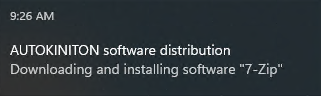
A short time later, the installation completed successfully. When I checked the device's installed applications list, 7-Zip was already present.
The difference compared to the traditional Intune experience was night and day.
Why This Matters
This enhancement has the potential to significantly improve day-to-day administration and help desk operations.
Need to deploy an application immediately? Sync the device.
Need a remediation script to run after updating an assignment? Sync the device.
Need a platform script, configuration profile, compliance policy, or updated inventory information to process right away? Sync the device.
What was once a "maybe it will happen eventually" button is now evolving into a genuinely useful administrative tool.
One of the most common criticisms of Intune has always been its delayed policy processing compared to traditional RMM solutions. While Intune is still not a full replacement for every RMM capability, this update is a substantial step toward providing the responsiveness administrators have been asking for.
What Still Needs Improvement
As exciting as this update is, there is still room for refinement.
The new sync status pane feels somewhat unfinished in its current state. When the pane first appears, it can be misleading because it initially looks as though the synchronization has already completed. It may take 10–15 seconds before activity begins to appear, which can create confusion for administrators monitoring the process.
I'd also love to see Microsoft expand the level of detail that's available during synchronization.
Imagine being able to see:
Which policies are currently being evaluated
Which applications are queued for installation
The status of individual remediation scripts
Real-time installation progress for applications
Detailed success and failure information without leaving the device view
That level of visibility would transform the sync experience from "helpful" to "exceptional."
Final Thoughts
Microsoft has taken a feature that many Intune administrators largely ignored and turned it into something genuinely useful.
The ability to trigger near real-time device check-ins directly from the Intune admin center can dramatically reduce deployment wait times, improve help desk efficiency, and provide a better overall management experience for administrators.
While there are still opportunities for Microsoft to enhance the sync status experience with more granular details and reporting, this is unquestionably a step in the right direction.
For organizations managing devices with Intune, the Sync button has finally become a tool worth using—and that's something many of us have been waiting a long time to say.