
It’s Friday, and a great week at Microsoft Ignite is coming to a close.
There were a lot of announcements this week, especially in the endpoint management space. As I sit at the airport and spend most of the day on planes, I wanted to recap everything I caught at Ignite, from the major announcements to some of the smaller changes that would have been easy to miss.
There is a lot to cover, so let’s get started.
Quality Update Settings for Windows Autopatch
Some major changes are coming to the Quality Update settings for Windows Autopatch in Microsoft Intune.
Administrators will have more control over how different types of quality updates are approved. Approval methods can be configured by update type, including monthly security updates, preview updates, out-of-band updates, supported .NET Framework updates, and Quick Machine Recovery fixes.
For updates that are approved automatically, administrators can also configure how many days Windows Autopatch should wait before making the update available to devices.
This provides more flexibility than applying one approval method and rollout schedule to every type of quality update.
Quick Machine Recovery Updates
Quick Machine Recovery is another important addition to Windows Autopatch.
This feature is designed for large-scale incidents that prevent Windows devices from booting, similar to the CrowdStrike outage in 2024. If a device repeatedly fails to boot, it can enter the Windows Recovery Environment, connect to Windows Update, and check for a remediation provided by Microsoft.
Windows Autopatch allows administrators to control how these recovery updates are deployed. Quick Machine Recovery updates can be approved automatically, delayed for a specified number of days, or held for manual review and approval.
The goal is to give organizations a cloud-based recovery option during a widespread boot failure without requiring IT teams to physically touch every affected device.
Windows Autopatch Update Overview Page
A new Windows Autopatch Update Overview page has been introduced to provide a centralized view of update status across the environment.
You can find it in the Microsoft Intune admin center under:
Reports > Windows Autopatch > Overview
The overview is intended to make it easier to understand update compliance, identify devices that are falling behind, and investigate issues preventing devices from reaching their targeted update state.
New Desktop Onboarding Experience
If you’re already using Windows Autopilot device preparation policies, you’ll know that one of the main goals is to install only the applications that are absolutely necessary during provisioning. This gets the user to the desktop faster instead of making them wait for every assigned application to install.
The downside to the current experience is that once the user reaches the desktop, there isn’t much visibility into the remaining applications that are still installing or waiting in the queue.
The new desktop onboarding experience is designed to address that gap. After the user signs in, Company Portal can automatically open and display the device’s setup status, including applications that are currently installing or waiting to be installed.
This should provide users with a much clearer handoff from Autopilot provisioning to the fully configured desktop.
View App Uninstall Commands in App Inventory
Microsoft also discussed the newer app inventory capabilities already available in Intune. One feature I hadn’t realized was included is the ability to view an application’s uninstall command directly from app inventory.
To find it:
- Open a device in the Microsoft Intune admin center.
- Select All apps.
- Select App inventory at the top of the page.
- Open the column selector.
- Add the Uninstall command column to the view.
The uninstall command is not displayed by default, but once the column is enabled, you can review the command associated with each supported application.
This could be especially useful when troubleshooting an application or building an Intune remediation, uninstall script, or replacement deployment.
There are several other useful properties available in the column selector, including application install locations and additional inventory information.
If you use Intune app inventory, it is worth reviewing the other available columns because some of the most useful information may not appear in the default view.
Device Association
The current Windows Autopilot registration process typically associates a device with an organization by importing its hardware hash into Intune. This can be completed manually or performed by a hardware vendor on the organization’s behalf.
Microsoft is developing a replacement called Device Association. Microsoft described the new approach as more secure than relying on hardware hashes, which can potentially be copied or spoofed.
This is an important change to watch because it could eventually affect how organizations and hardware vendors register new Windows devices for Autopilot.
New Security Controls for Local AI Agents
Microsoft is introducing additional Intune controls to help organizations discover and govern local AI agents.
These capabilities include application inventory, software compliance policies, and policies that establish boundaries around what supported agents can access or do. Organizations can identify an unwanted application or agent host and potentially mark devices running that software as noncompliant.
When combined with Microsoft Entra Conditional Access, that compliance state can be used to restrict the device from accessing corporate resources until the unwanted software is removed.
Microsoft is also introducing controls for supported execution environments, including Microsoft Execution Containers, to help define file and network access boundaries for approved agents.
Windows Server Management Is Coming to Intune
One of the biggest endpoint announcements from Ignite is that Windows Server management is coming to Microsoft Intune.
There are several important caveats right now. The feature is currently in private preview and is not intended for production use.
During the Ignite demonstrations, support was limited to Windows Server vNext Insider Preview builds running Desktop Experience. Microsoft has not announced support for Windows Server 2025 or earlier releases at this time.
I hope broader support is added before general availability because bringing Windows client and Windows Server management closer together could simplify policy, inventory, compliance, and update workflows for a lot of organizations.
Explorer Updates and Custom Reports
If you use Security Copilot with Intune, additional updates are coming to the Explorer experience.
Microsoft also announced Microsoft Perception capabilities for IT, which will bring plain-language exploration and custom reporting into Intune. Administrators will be able to explore endpoint data using natural language, build repeatable reports, and track whether remediation work produced the intended outcome.
The practical goal is to reduce the need to export data from multiple systems or manually reconcile separate security and endpoint reports.
Patching Guidance Is Changing
This topic came up in multiple sessions during the week: with attackers increasingly using AI to discover and exploit vulnerabilities, reducing the time between an update’s release and deployment is becoming more important.
Microsoft’s updated guidance considers devices current when they receive the latest security update within three days of release.
That is a major change for organizations using longer validation and deployment cycles. Moving to a three-day target will require carefully designed deployment rings, representative pilot groups, strong reporting, and a process for quickly pausing a problematic update.
It is an aggressive target, but considering how quickly vulnerabilities can now be weaponized, I understand why Microsoft is pushing organizations in this direction.
Enterprise App Management Changes
Microsoft is continuing to expand Enterprise App Management in Intune.
One of the latest additions is the ability to configure a policy that automatically updates eligible Enterprise App Management applications. This should reduce the need to manually create or update individual deployments whenever a supported application publishes a new version.
As always, I would test automatic updates against a small, representative group before enabling them broadly, especially for applications that are critical to manufacturing, engineering, or other business workflows.
Assignment Filter Updates
A long-requested update is coming to Intune assignment filters.
Administrators will be able to filter devices using properties collected through device inventory, such as storage capacity and other hardware information. This should make assignments more flexible without requiring a separate Microsoft Entra ID group for every hardware-related scenario.
This was not available in my tenant at the time of writing, and I did not catch a confirmed public preview date during the sessions.
Vulnerability Management and Remediation
Microsoft is also bringing additional vulnerability management capabilities into Intune through integrations with Microsoft Defender and Microsoft Perception.
The general idea is that administrators will be able to view prioritized vulnerabilities and exposure information, review a proposed remediation plan, deploy the necessary change through Intune, and then verify whether the remediation reduced the identified risk.
I still need to spend more time with this feature before going into detail, but it could help reduce the manual handoff that often happens between security teams and endpoint administrators.
Device Health Updates
Several updates are also coming to device health and Windows update reporting.
The new experience is expected to provide more assistance with identifying why updates failed and show a more complete update timeline for an individual device.
This should make it easier to distinguish between a deployment delay, a policy issue, a safeguard hold, an installation failure, or another condition preventing the device from reaching its targeted update level.
It looks like these capabilities may be coming soon, but they were not available in my tenant at the time of writing.
Near Real-Time Software Compliance
Microsoft is introducing new software compliance capabilities that can evaluate devices based on the presence of specified applications.
For example, an administrator could identify an unsanctioned local AI agent or another restricted application. When the application is detected, the device can be marked noncompliant. If the application is removed and the device is reevaluated, it can return to a compliant state.
When paired with Conditional Access, this provides a way to restrict access to corporate resources when prohibited software is present.
Microsoft described these compliance evaluations as near real time.
New Experience Controls in Intune
With future Windows feature updates, Microsoft plans to introduce experience controls in Intune that organize settings around the Windows release where a feature was introduced.
For example, when an organization begins deploying a future Windows release, such as 26H2, administrators would be able to open the corresponding experience controls and review the new settings associated with that version.
This should make it easier to understand what changed in a feature update and decide which new experiences should be enabled, disabled, or controlled.
The feature was not available in public preview at the time of writing, but it appears to be coming soon.
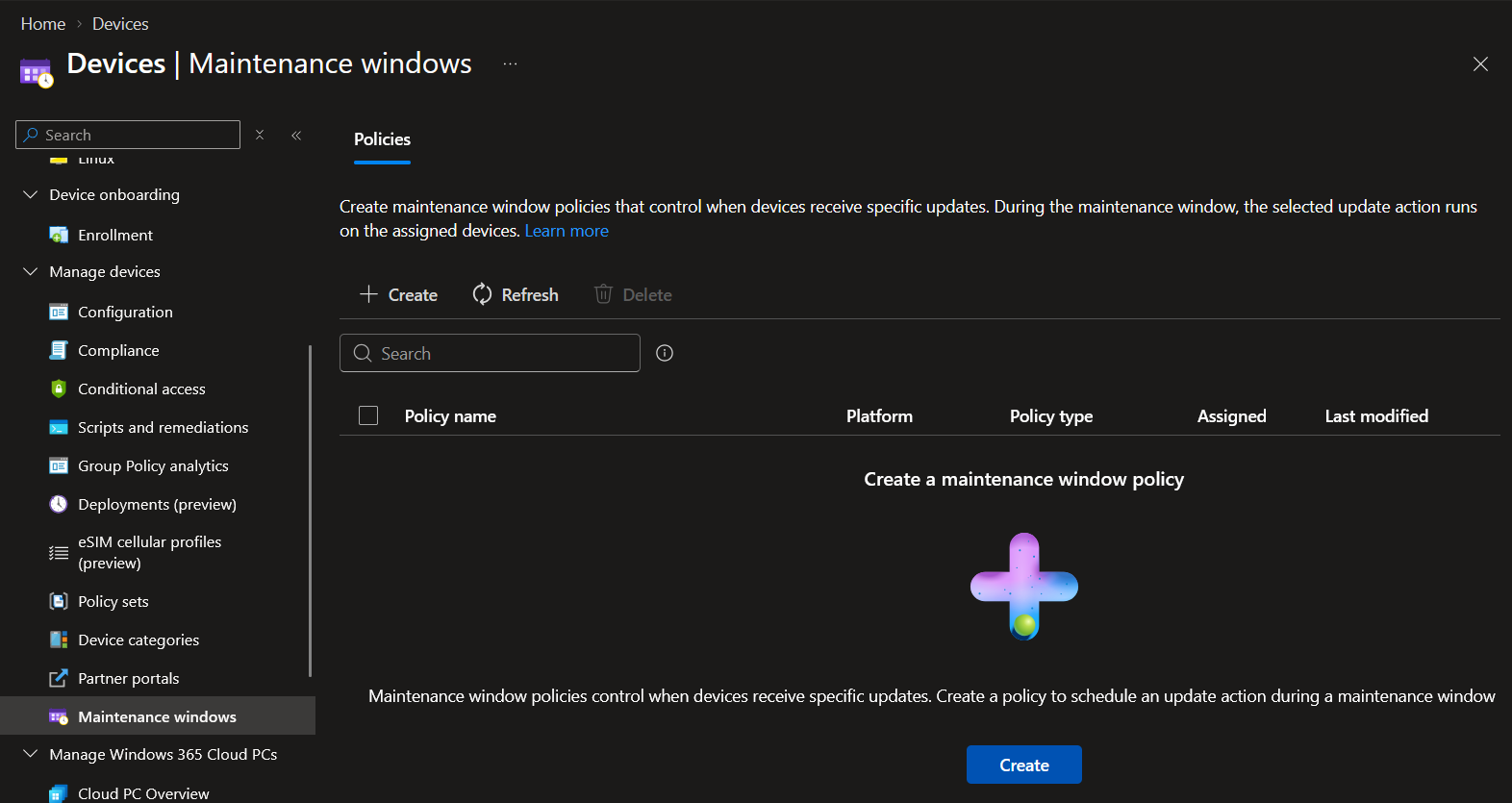
Maintenance Windows
Maintenance windows were another highly requested capability discussed during Ignite.
Maintenance windows are intended to give administrators more control over when devices install updates and restart. This would be especially useful for shared devices, manufacturing systems, kiosks, and other endpoints that have specific periods when servicing activity can safely occur.
Microsoft demonstrated the experience under:
Devices > Maintenance windows
Driver Update Restart Coordination
A common complaint with driver updates deployed through Intune is that a driver requiring a restart can create an additional reboot outside the normal monthly update cadence.
For that reason, many administrators, including myself, manually schedule driver approvals so that they align with the monthly Windows quality update cycle. This reduces the chance that users will be asked to restart multiple times during the month.
Microsoft announced work to coordinate restart-requiring driver updates with the monthly quality update cycle. Instead of immediately creating a separate restart event, an approved driver could wait and install alongside the normal monthly update.
Microsoft did not provide a confirmed availability date during the sessions I attended.
Declarative Management
Declarative management is one of the behind-the-scenes changes that most users will probably never notice, but it could have a significant effect on how quickly Windows devices process management changes.
Traditional mobile device management relies heavily on the device periodically checking in and processing commands through OMA-DM. Declarative management shifts more of that work to a model where the administrator defines the desired state and Windows works toward maintaining that state.
The goal is to make configuration changes faster, more resilient, and less dependent on a long sequence of individual management commands.
BitLocker Startup PIN Setup Without Administrator Credentials
Microsoft is adding an option that allows users to configure their own BitLocker startup PIN without needing local administrator credentials.
When the appropriate policy is assigned, Windows prompts the user to create the startup PIN. The user can complete the process without an administrator entering credentials on the device.
This should make it much easier to deploy BitLocker startup PIN requirements to remote users without requiring a service desk session for every device.
At the time of writing, this appears to be limited to Windows Insider preview builds.
Remote Lock for Windows Devices
A new Intune device action will allow administrators to remotely lock a Windows device that has been lost or stolen.
Instead of immediately wiping the device, an administrator can place it into a locked state and display a recovery message to the person who has it. This provides another option when the organization wants to prevent access but is not yet ready to erase the device.
The capability was demonstrated with Windows Insider builds and should be treated as a preview feature until Microsoft confirms broader availability.
Wrap-Up
Well, if you read through all of this and made it this far, thanks for sticking with me through this incredibly long post!
And if you just scrolled to the bottom looking for the summary, I’ll encourage you to stick around for future updates. I plan to dive deeper into several of these new features one by one as they’re released and as I get a chance to test them.
The overall direction is clear. Microsoft is trying to reduce the time between identifying a problem and taking action, whether that means deploying an update, recovering a device that can’t boot, removing vulnerable software, controlling an AI agent, or understanding why a device is unhealthy.
Overall, Ignite was a great experience as always. I’m looking forward to spending more time with these features and covering several of them in greater detail in future blog posts, so stay tuned!