
Controlling Policy Conflicts: Intune vs. Group Policy
If you’re transitioning your Windows endpoint management to Microsoft Intune, you’ll quickly find yourself creating configuration profiles as part of that journey. In many environments, this transition doesn’t happen overnight. For a period of time, devices are often Hybrid Azure AD joined, requiring administrators to manage both traditional on-premises Group Policy Objects (GPOs) and modern Intune configuration profiles side by side.
During this coexistence phase, it’s common to encounter overlapping settings between Group Policy and Intune. By default, when a conflict exists between these two management methods, Group Policy takes precedence, meaning the GPO setting is applied instead of the Intune configuration profile.
In most cases, this default behavior is not desirable when your long-term goal is to migrate fully to Intune and gradually deprecate Group Policy. To confidently validate your Intune configurations, you need assurance that Intune policies are being applied as intended, even when a conflicting Group Policy setting still exists. Without this visibility, it becomes difficult to verify policy behavior and can lead to unexpected outcomes when Group Policy is eventually disabled or when devices transition to Entra ID–joined.
In this blog post, I’ll walk through creating an Intune configuration profile that ensures Intune takes precedence over Group Policy in the event of a conflict. This approach allows you to safely test, validate, and rely on your Intune policies throughout the migration process—without surprises when Group Policy is removed from the equation.
In addition to creating the policy itself, I’ll also demonstrate how to identify and review potential policy conflicts directly within the Intune admin portal. Understanding where overlaps exist—and which settings are competing for control—provides valuable insight during a migration and helps ensure your configuration decisions are intentional and well‑informed.
Create the MDM Wins over GPO Configuration Profile
From the Intune admin portal, go to Devices > Windows > Configuration
Select + Create> + New Policy
Choose the Platform Windows 10 and later and set the profile type to Settings catalog
Click Create
Insert a Name, Description, and click Next
Click on Add settings
Search for Control Policy Conflict and select the policy
Enable MDM Wins Over GP
Use the dropdown to set the policy to The MDM policy is used and the GP policy is blocked.
Click Next
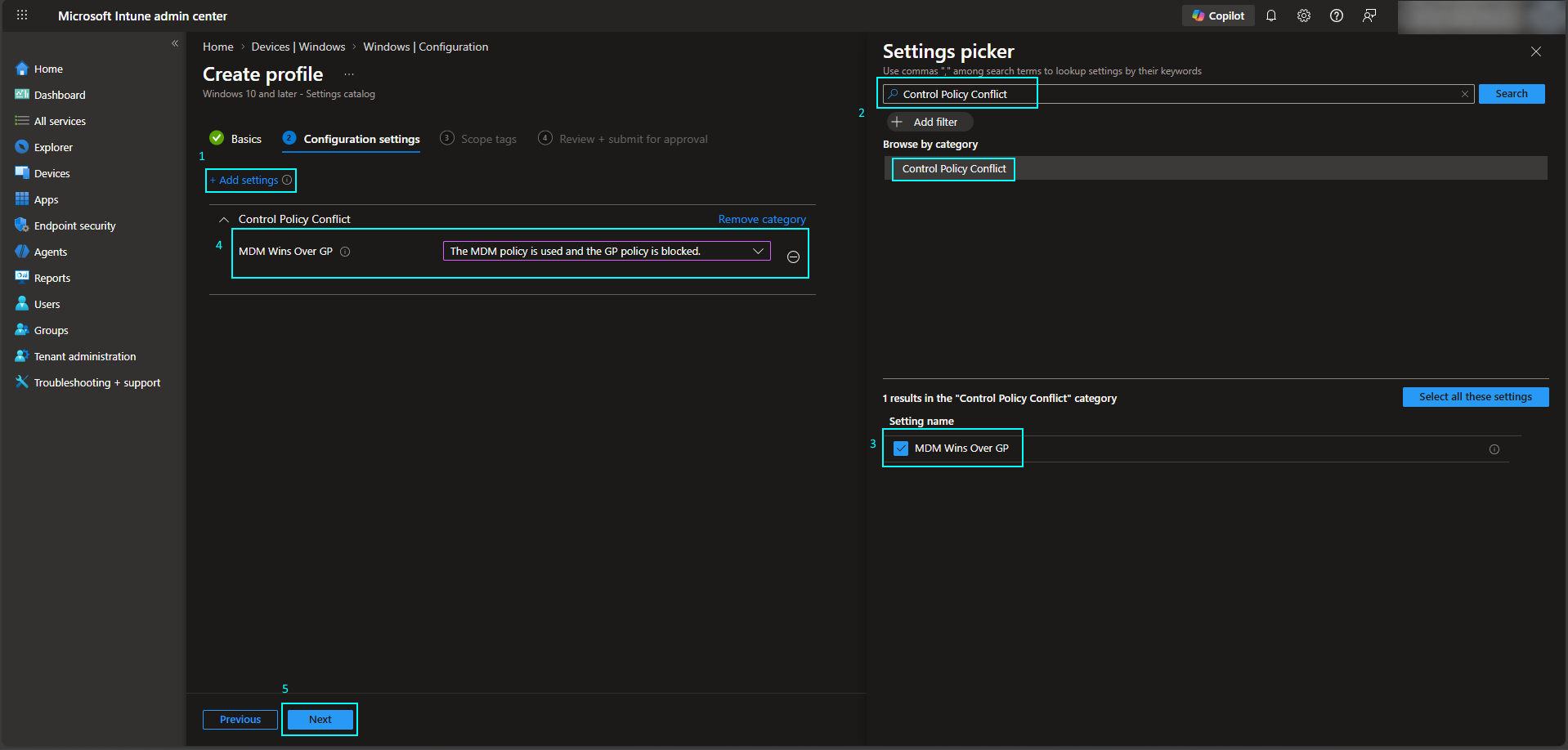
With the profile created, the final step is assigning it to the appropriate devices or groups. Once assigned, Intune will take precedence in any conflict between on‑premises Group Policy and Intune configuration policies, ensuring the Intune settings are applied as intended.
View Policy Conflicts
Even when Intune is configured to take precedence, it’s still important to review any existing conflicts to understand which policies overlap and how they interact.
From the Intune Admin Portal
Click on Reports > Device Configuration > Reports > Policy Configuration Status
Generate the report and sort by Devices with conflict to quickly identify affected endpoints. This view is also useful for highlighting any errors associated with deployed configuration policies.
With a solid understanding of policy conflicts, you can confidently begin migrating existing Group Policy settings to Intune—or, at a minimum, ensure that all new policies are created directly in Intune. This approach reduces future rework and supports a cleaner, more intentional transition to modern device management.