
Configuring Intune’s New App Inventory
In April, Microsoft introduced an upgraded app inventory system designed to provide faster, more frequent inventory updates for Windows endpoints. This new feature is set to replace the legacy "Discovered Apps" section within Microsoft Intune, transitioning instead to a unified All Apps report.
When reviewing a specific device in the Intune console and navigating to the Managed Apps or Discovered Apps tabs on the left-hand menu, you will now see a banner at the top notifying you of this change.
Historically, application inventory data has been notoriously slow and unreliable within Intune. Data in the legacy Discovered Apps report could take up to a week or more to sync after an application was installed or removed from an endpoint. This new architecture fixes that pain point by promising syncs every 24 hours, provided the device is online and connected to Intune.
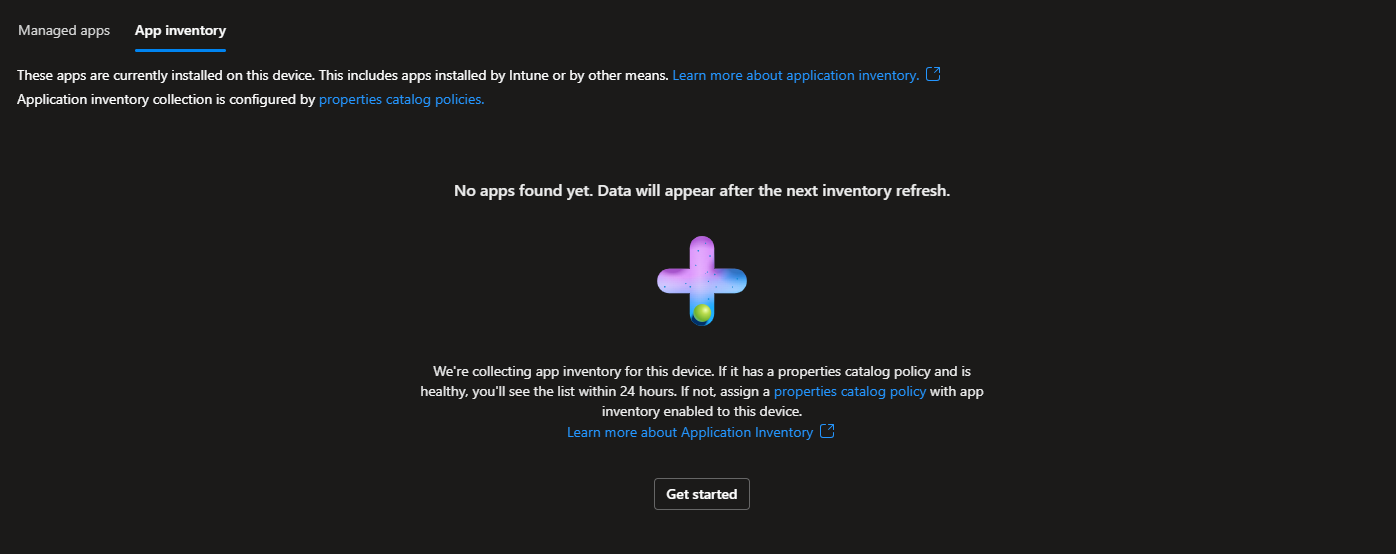
However, leveraging this upgraded capability requires a specific configuration policy to be created and deployed to your endpoints. This policy explicitly instructs devices to collect and report their app inventory data back to the tenant. If you don't have this policy configured, attempting to view the All Apps report on a device will present you with an informational message prompting you to set one up.
Configuring a Device Inventory Policy
The first step is to establish a device inventory policy. Because device inventory has been a native part of Intune for some time, you may already have a policy in place. If so, you do not need to create a new one; you simply need to append the new app inventory properties to your existing policy.
To create a new device inventory policy from scratch, navigate to your Windows configuration profiles within the Intune Admin Center:
- Go to the Intune Admin Center.
- Navigate to Devices > Windows > Configuration.
- Click Create > New Policy.
- Select Windows 10 and later as the Platform.
- Select Properties catalog as the Profile type.
- Provide a clear Name and Description for your Device Inventory policy.
Next, add properties to your Device Inventory policy. If you are modifying an existing policy, you will look for the Application Properties option, which is the new addition rolled out in April 2026.
Once the properties are added, you can customize the inventory by removing specific data points. For instance, if your organization does not want to collect Install Location data, you can simply click the remove button next to that specific property. However, customizing this is entirely optional.
Once your policy settings are fully configured, complete your scope tags and assignments, and deploy the policy. As a best practice, remember that all new policies should be tested in deployment waves within a staging environment to ensure there are no adverse effects before a full production rollout.
Viewing the Inventory Information
After deploying the policy, allow some time for your endpoints to check in, apply the settings, and report their data back. It is often best to wait a few days to ensure complete data collection across your fleet.
To audit the collected data, open a specific device record in Intune by navigating to Devices > Windows, searching for the device, and selecting it.
To view standard hardware and OS inventory data, click on the Device Inventory menu option on the left. Here, you will see the hardware-level details you are collecting, such as BIOS, CPU, and Disk Drive information.
Viewing App Inventory Data
App inventory data lives under the All Apps menu. At the top of this view, you will find two primary tabs. The first is Managed Apps, which displays all applications explicitly managed and installed via Intune.
The second tab is App Inventory. This view displays the data discovered by your new Device Inventory policy. It provides a comprehensive list of all applications detected on the endpoint, regardless of whether they were deployed via Intune.
Final Thoughts & Considerations
With this shift, the legacy Discovered Apps page on individual device blades will eventually be deprecated. However, it is worth noting that Microsoft has not yet introduced a direct replacement for the tenant-wide Discovered Apps report found under Apps > Monitor.
Historically, that tenant-wide report has been notoriously slow to update—often taking days or even weeks to reflect changes (such as showing Wireshark as installed long after it was removed). While the new device-level inventory is designed to refresh every 24 hours, we are still waiting on an updated global monitoring report to fully replace the legacy system and leverage this faster data sync.